
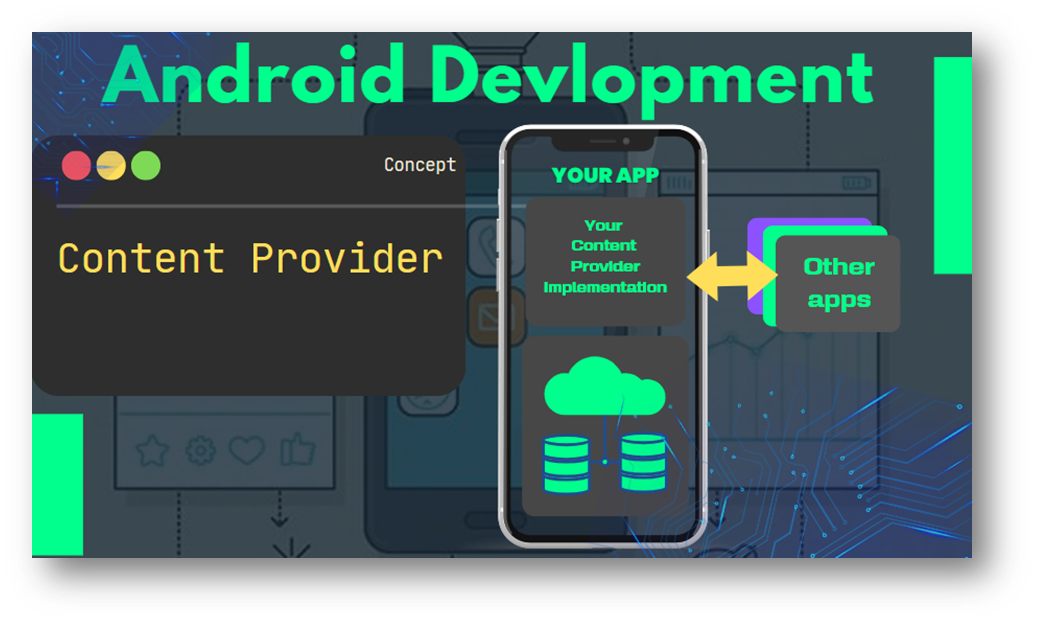
Content Provider in Android

Table of Contents
What is a Content Provider
In the Android framework, a content provider is an application component used to manage access to a central data repository. It serves as an interface that allows different applications to access and share data with one another securely.
Think of a content provider as a gatekeeper that controls access to a specific set of data, which could be anything from contact information, and media files, to other structured data. It acts as a bridge between an app’s data and other apps needing access.
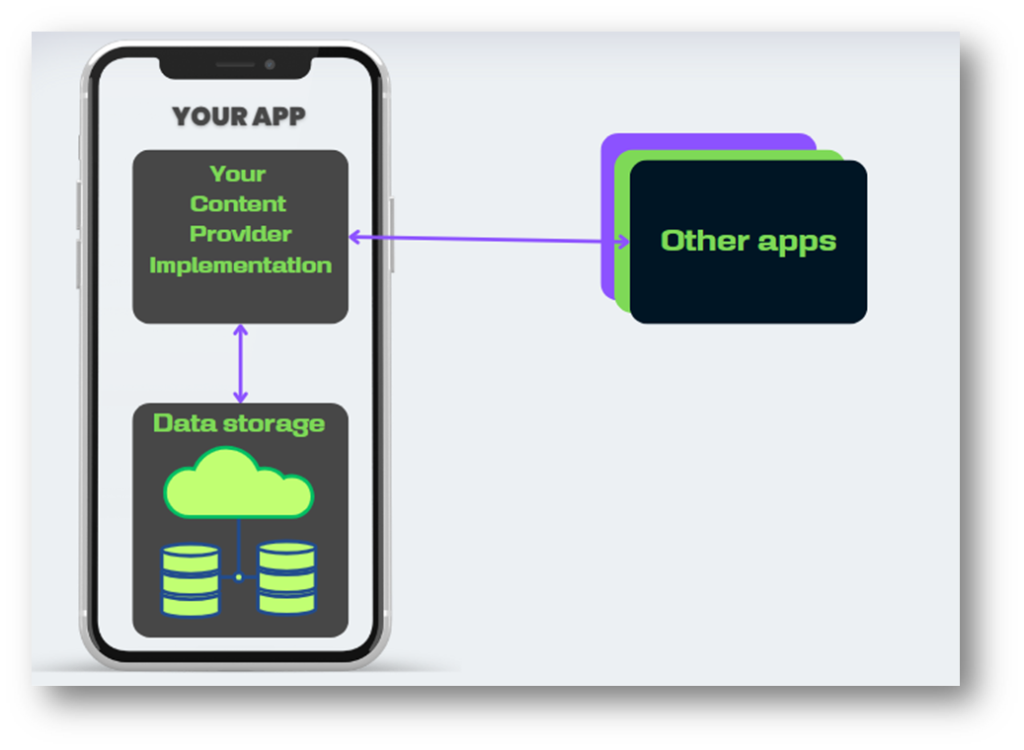
Here’s a breakdown of the main points:
- Data Management: A content provider manages a particular set of structured data. It can store, retrieve, and modify this data based on requests from different apps.
- Data Sharing: While a content provider is often associated with a specific app, it allows other apps to access its data securely. This promotes data sharing between different applications without compromising security or integrity.
- Standard Interface: Content providers offer a standardized interface to the data they manage. Other apps can interact with this data using a common set of methods and queries, ensuring consistency in how the data is accessed.
- Interprocess Communication (IPC): They facilitate communication between different Android processes. When an app wants to access data from another app, it can do so via the content provider, enabling secure interprocess communication.
- Secure Data Access: Content providers control access to the underlying data, allowing apps to define permissions for accessing and modifying that data. This helps in enforcing security measures, ensuring only authorized apps can access sensitive information
Know more about Android application component.
When and Why Use Content Provider
Use content providers if you plan to share data. If you don’t plan to share data, you don’t have to use them, but you might choose to because they provide an abstraction layer which allows you to modify your application data storage implementation without affecting other applications that depend on your data.
In this scenario, only your content provider is affected and not the applications that access it. For example, you might swap out a SQLite database for alternative storage, as illustrated in the figure.
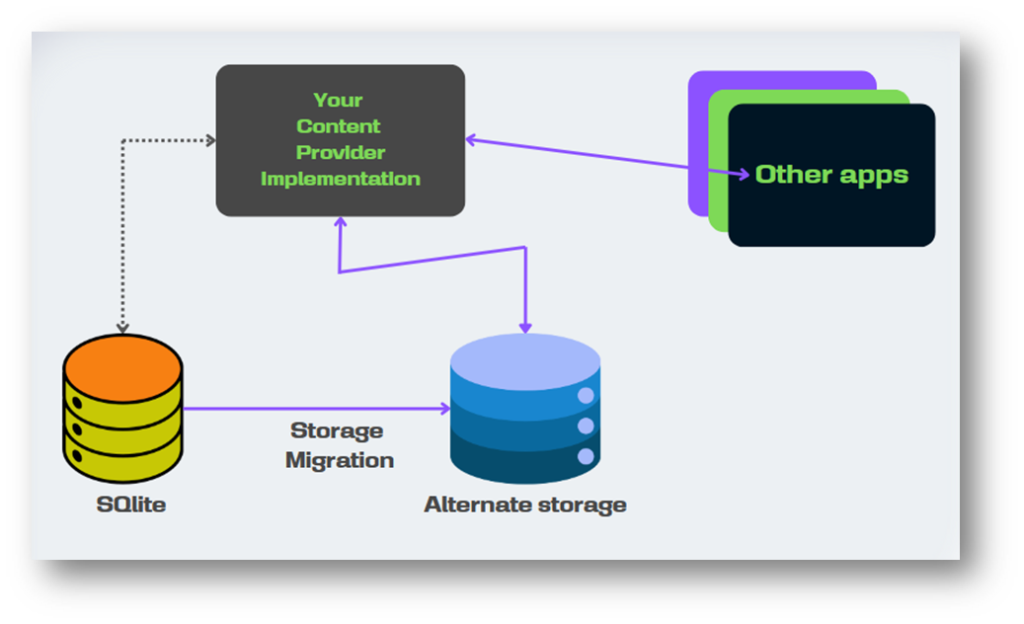
Typically, you will use content providers in one of the following two scenarios:
- To access an existing content provider in another application
- To create a new content provider in your application to share data with other applications.
Access to the data storage layer
A content provider presents data to external applications as one or more tables that are similar to the tables found in a relational database. A row represents an instance of some type of data the provider collects, and each column in the row represents an individual piece of data collected for an instance.
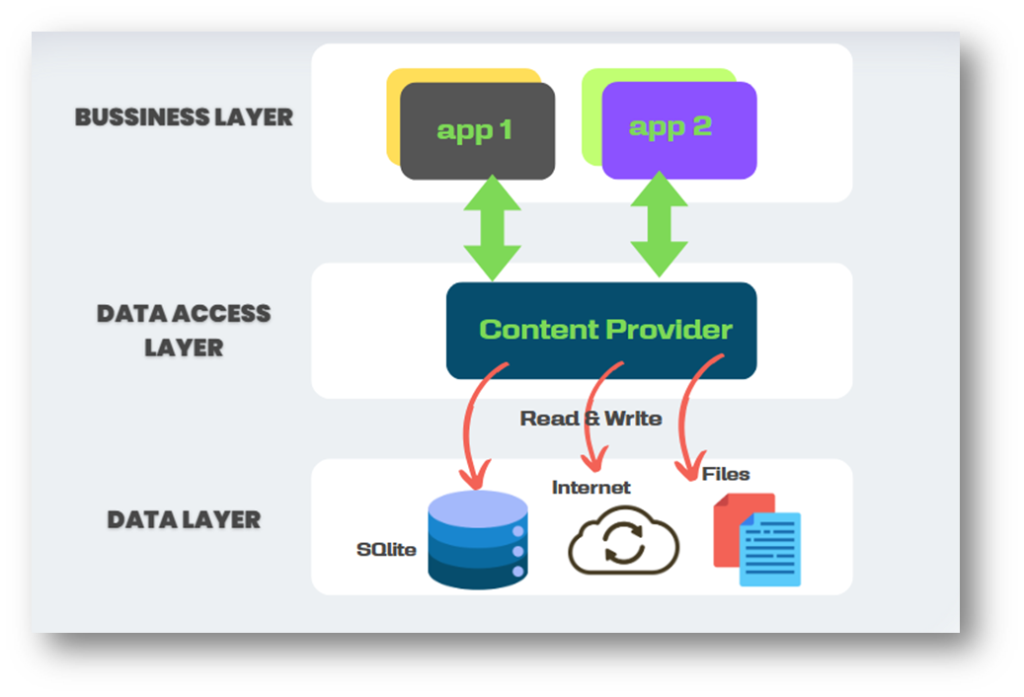
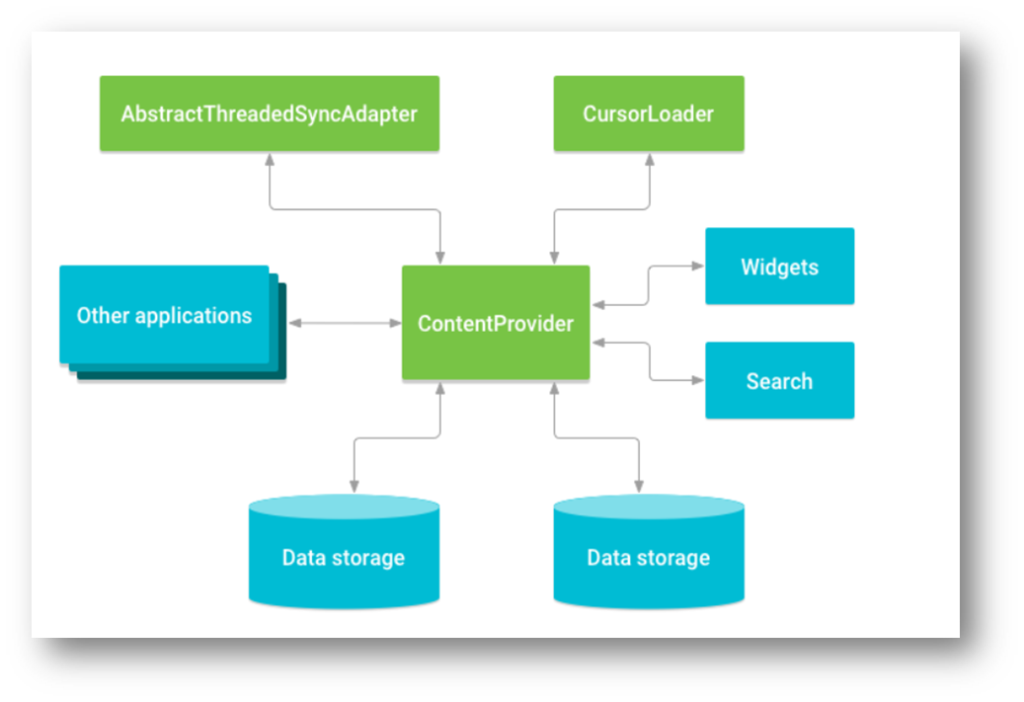
A content provider coordinates access to the data storage layer in your application for several different APIs and components. As illustrated in Figure, these include the following:
- Sharing access to your application data with other applications
- Sending data to a widget
- Returning custom search suggestions for your application through the search framework using
SearchRecentSuggestionsProvider - Synchronizing application data with your server using an implementation of
AbstractThreadedSyncAdapter - Loading data in your UI using a
CursorLoader
ContactNest app: fetching contact list from the content provider
Have you ever wondered how a new contact gets added to your WhatsApp application when you add it to your contacts app?
It’s all thanks to Content Providers in Android! Content Providers allow applications to share data with each other, including contacts. By taking permission, the contacts app can manage and share your contacts with other applications on your Android device.
Remember the best way to learn Android, try making a project and learning the concept along the way.
We are building a small project named ContactNest that includes one small feature of WhatsApp that is mentioned above, showcasing the power of Content Providers.
Preview

UI
Create a row layout for the recycler view as shown in the app and MainActivity add one floating button I think it is straightforward if you have some knowledge about Android.
Accessing Data from Content Provider
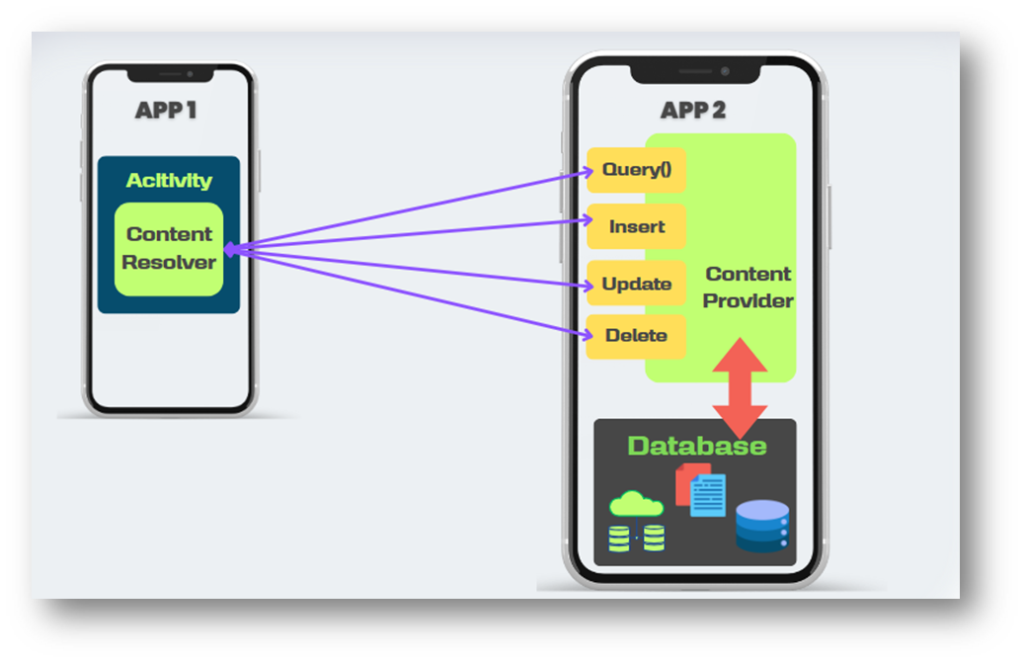
When you want to access data in a content provider, you use the ContentResolver object in your application’s Context, which acts as a bridge between your app and the content provider, functioning as the client. This ContentResolver communicates with the ContentProvider object, an instance of a class implementing the ContentProvider interface.
The role of the Content Provider object is to receive requests for data from client apps, execute the requested operations, and send back the outcomes. It contains methods that correspond to similarly named methods in the ContentResolver, which is an instance of a specific subclass of ContentProvider.These methods handle the fundamental actions for storing and retrieving data – commonly known as CRUD operations (Create, Retrieve, Update, Delete).
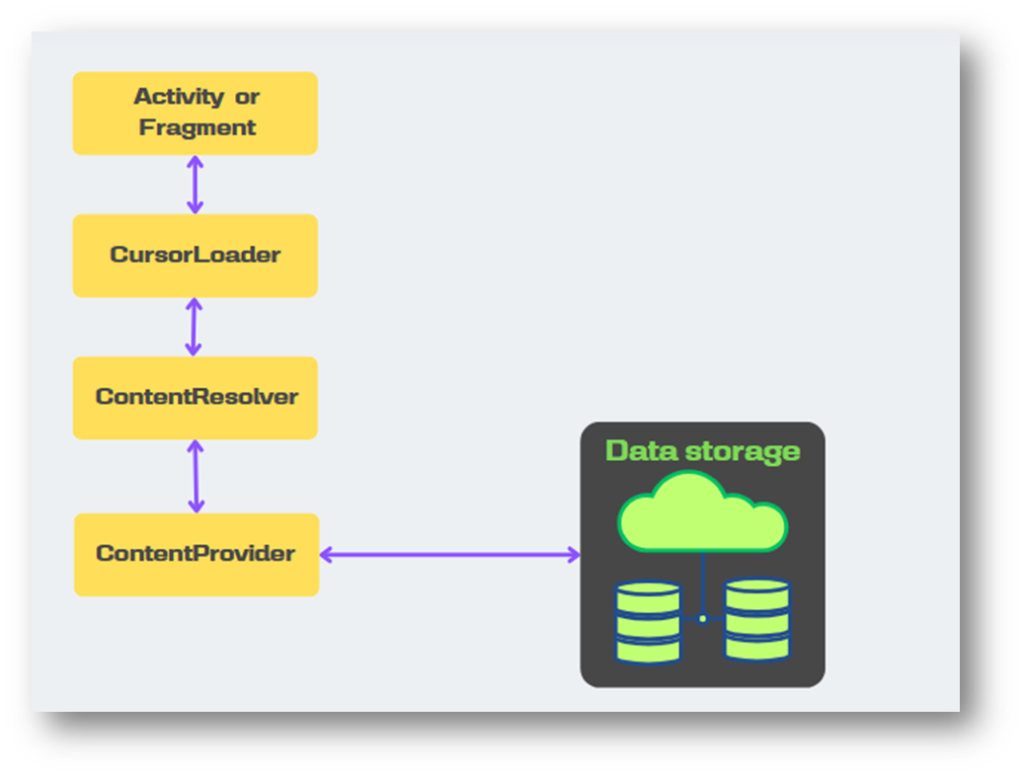
A common pattern for accessing a ContentProvider from your UI uses a CursorLoader to run an asynchronous query in the background. The Activity or Fragment in your UI calls a CursorLoader to the query to perform a query. Internally, the CursorLoader interacts with the ContentProvider through the ContentResolver to fetch the required data.
The interaction between the Android application UI and content providers to perform the required actions to get data is illustrated in the image.
One of the built-in providers in the Android platform is the Contacts Provider, which stores contact-related information. The structure of the Contacts Provider can vary based on the Android version and device. The table illustrates what the data might look like in this provider’s.
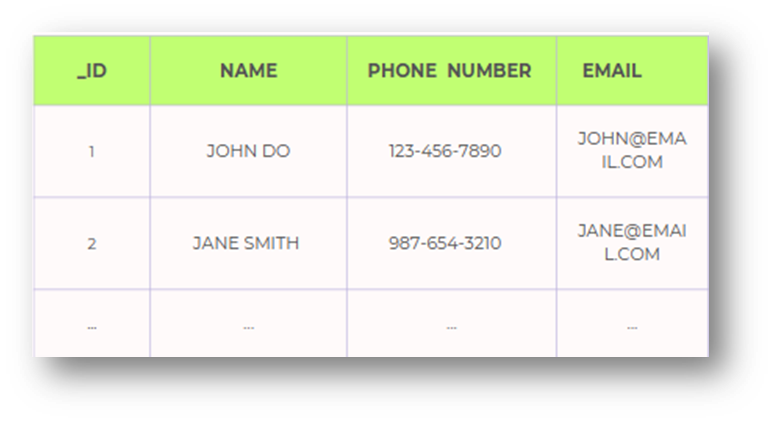
In table, each row represents an instance of a contact, each column represents the piece of data for that contact. The column headers are column names that are stored in the provider. So, to refer to a row’s Phone Number, for example, you refer to its Phone Number column. _ID column serves as a primary key column that the provider automatically maintains.
This structure is a simplified representation and doesn’t cover all the complexities of the actual Contacts Provider. For detailed and accurate information about the Contacts Provider and its tables, it’s best to refer to the Android documentation or developer resources provided by Google here.
To get a list of the contact’s name and phone number,you call ContentResolver.query(). The query() method calls the ContentProvider.query() method defined by the Contacts Provider. The following lines of code show a ContentResolver.query() call:
// Queries the UserDictionary and returns results
contentResolver.query(
       ContactsContract.CommanDataKinds.Phone.CONTENT_URI,  // The content URI of the contacts table
        projection,                        // The columns to return for each row
        selectionClause,                   // Selection criteria
        selectionArgs.toTypedArray(),      // Selection criteria
        sortOrder                          // The sort order for the returned rows
)?.use{ cursor ->
}
The Table shows how the arguments, to query(Uri,projection,selection,selectionArgs,sortOrder) match a SQL SELECT statement:

Content URI
The Content URI (Uniform Resource Identifier) in Android is a unique identifier used by the ContentResolver to access data from a ContentProvider.
In Android, content URIs follow the pattern
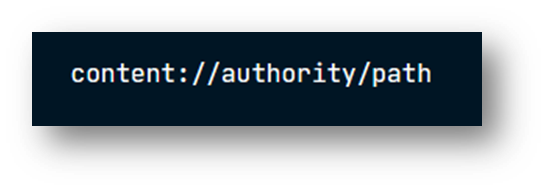
Here’s a breakdown of its components:
- content://: Indicates that it’s a content URI used with the ContentResolver.
- authority: Identifies the content provider. For instance, contacts, media, downloads, etc.
- path: Specifies the specific data set or table within the content provider. It could represent contacts, images, files, etc.
In the preceding lines of code, the constant CONTENT_URI contains the content URI of the Contacts Provider’s contact table.
Retrieve data from the provider
To retrieve data from a provider, follow these basic steps, in our ContactNest app, there is only one activity which is MainActivity so all code is in this only.
1.Request read access permission for the provider.
To retrieve data from a provider, your application needs read access permission for the provider. You can’t request this permission at runtime. Instead, you have to specify that you need this permission in your manifest, using the <uses-permission> element and the exact permission name defined by the provider.
The role of permissions in accessing providers is described in more detail in the Content provider permissions section.
Implementation
1.Add Permission in AndroidManifest.xml:
<uses-permission android:name="android.permission.READ_CONTACTS" />
2.Check Permission at Runtime:
At runtime, verify if the permission is granted. If not, request it from the user.
 private fun syncContacts() {
        if (checkSelfPermission(android.Manifest.permission.READ_CONTACTS) != PackageManager.PERMISSION_GRANTED) {
            requestPermissions(
                arrayOf(android.Manifest.permission.READ_CONTACTS), REQUEST_CONTACTS_PERMISSION_CODE
            )
        } else {
            fetchContacts()
        }
    }
Here, REQUEST_CONTACTS_PERMISSION_CODE is an integer constant to identify the permission request.
Call this function on setOnClickListener of the floating button.
3.Handle Permission Request Result:
Override onRequestPermissionsResult method to handle the user’s response to the permission request.
override fun onRequestPermissionsResult(
        requestCode: Int, permissions: Array<out String>, grantResults: IntArray
    ) {
        super.onRequestPermissionsResult(requestCode, permissions, grantResults)
        if (requestCode == REQUEST_CONTACTS_PERMISSION_CODE) {
            if (grantResults[0] == PackageManager.PERMISSION_GRANTED) {
                syncContacts()
            } else {
                Snackbar.make(
                    this, binding.root, "Permission Not Granted", Snackbar.LENGTH_SHORT
                ).show()
            }
        }
    }
4.Fetch Contacts:
After obtaining permission, implement the logic to fetch contacts using the ContactsProvider or any appropriate method as per your requirement. Here we will write the below query code.
2.Define the code that sends a query to the provider
The next step in retrieving data from a provider is to construct a query.
Projection
Projection in Android’s ContentProvider is used to define which columns to retrieve when querying data. It’s like a filter that specifies the columns you’re interested in fetching from the database.
val mProjection = arrayOf(
            ContactsContract.CommonDataKinds.Phone.DISPLAY_NAME,//Contract class          constant for the display name column
            ContactsContract.CommonDataKinds.Phone.NUMBER,//Contract class          constant for the number column
        )
The set of columns that the query returns is called a projection, and the variable is mProjection.
The next snippet shows how to use ContentResolver.query(). A provider client query is similar to a SQL query, and it contains a set of columns to return, a set of selection criteria, and a sort order.
contentResolver.query(
    ContactsContract.CommonDataKinds.Phone.CONTENT_URI,
    projection,
    null,
    null,
    null
)?.use { cursor ->
    val nameColumn =
        cursor.getColumnIndex(ContactsContract.CommonDataKinds.Phone.DISPLAY_NAME)
    val numberColumn = cursor.getColumnIndex(ContactsContract.CommonDataKinds.Phone.NUMBER)
    while (cursor.moveToNext()) {
        val name = cursor.getString(nameColumn)
        val number = cursor.getString(numberColumn)
        contact.add(ContactDetails(name, number))

    }
    cursor.close()
This query is analogous to the following SQL statement:
SELECT DISPLAY_NAME, NUMBER from Phone
we are not applying any selection cause here.
contact.add(ContactDetails(name, number)) here contact is our local ArrayList which is later passed as an argument in ContactAdapter.
Cursor
The ContentResolver.query() client method always returns a Cursor containing the columns specified by the query’s projection for the rows that match the query’s selection criteria. An Cursor object provides random read access to the rows and columns it contains.
The cursor that is returned by the query will contain only the columns specified in the projection.
Using Cursor methods, you can iterate over the rows in the results, Cursors are positioned initially before the first entry. You can move through the result set row by row using methods like moveToNext(), moveToFirst(), moveToPosition(), etc.
Cursors allow accessing data within the result set using methods like getColumnIndex() (to get the column index by column name), getString(), getInt(), getLong(), getBlob(), etc., based on the data type.
If no rows match the selection criteria, the provider returns a Cursor object for which Cursor.getCount() is 0—that is, an empty cursor.
If an internal error occurs, the query results depend on the particular provider. It might return null, or it can throw an Exception.
It’s essential to manage the cursor’s lifecycle properly. Always close the cursor when you are done with it to release system resources and avoid memory leaks. Use cursor.close() for this purpose
Our ContactNest app is complete here.
Insert, update, and delete data
In the same way that you retrieve data from a provider, you also use the interaction between a provider client and the provider ContentProvider to modify data
Insert data
To insert data into a provider, you call the ContentResolver.insert() method. This method inserts a new row into the provider and returns a content URI for that row.
// Defines a new Uri object that receives the result of the insertion
lateinit var newUri: Uri
...
// Defines an object to contain the new values to insert

val phoneValues = ContentValues().apply {
        put(ContactsContract.CommonDataKinds.Phone.NUMBER, phoneNumber)
        put(ContactsContract.CommonDataKinds.Phone.TYPE, ContactsContract.CommonDataKinds.Phone.TYPE_MOBILE)
    }

contentResolver.insert(ContactsContract.Data.CONTENT_URI, phoneValues)
The data for the new row goes into a single ContentValues object, which is similar in form to a one-row cursor. The columns in this object don’t need to have the same data type, and if you don’t want to specify a value at all, you can set a column to null using ContentValues.putNull().
Update data
To update a row, you use a ContentValues object with the updated values, just as you do with an insertion, and selection criteria, as you do with a query. The client method you use is ContentResolver.update().
val values = ContentValues().apply {
        put(ContactsContract.CommonDataKinds.Phone.NUMBER, newPhoneNumber)
    }

    val selection = "${ContactsContract.Data._ID} = ? AND ${ContactsContract.Data.MIMETYPE} = ?"
    val selectionArgs = arrayOf(contactId, ContactsContract.CommonDataKinds.Phone.CONTENT_ITEM_TYPE)

    contentResolver.update(
        ContactsContract.Data.CONTENT_URI,
        values,
        selection,
        selectionArgs
    )
Delete data
Deleting rows is similar to retrieving row data. You specify selection criteria for the rows you want to delete, and the client method returns the number of deleted rows.
fun deleteContact(contentResolver: ContentResolver, contactId: String) {
    val selection = "${ContactsContract.RawContacts._ID} = ?"
    val selectionArgs = arrayOf(contactId)

    contentResolver.delete(
        ContactsContract.RawContacts.CONTENT_URI,
        selection,
        selectionArgs
    )
}
Contract classes
A contract class defines constants that help applications work with the content URIs, column names, intent actions, and other features of a content provider. Contract classes aren’t included automatically with a provider. The provider’s developer has to define them and then make them available to other developers. Many of the providers included with the Android platform have corresponding contract classes in the package android.provider.
For instance, the ContactsContract class in Android is a Contract class that provides constants and column names for interacting with the device’s contacts. It contains constants like ContactsContract.Contacts.CONTENT_URI, ContactsContract.Contacts.DISPLAY_NAME, and others that are used to access and manipulate contact-related data.
Download Code
rishiroid/contactnest (github.com)
“Expressing gratitude and may everyone draw nearer to the essence of Lord Krishna consciousness.”
References: